10 tips on how to make slides that communicate your idea,
from TED’s in-house expert
-
Socrative is a smart student response system that empowers teachers to engage their classrooms through a series of educational games and exercises via smartphones and tablets. Our apps are super simple and take seconds to load and run. Teachers control the questions and games on their laptop, while students respond and interact through their smartphones/laptops. Run it as an app or on any web browser
-
-
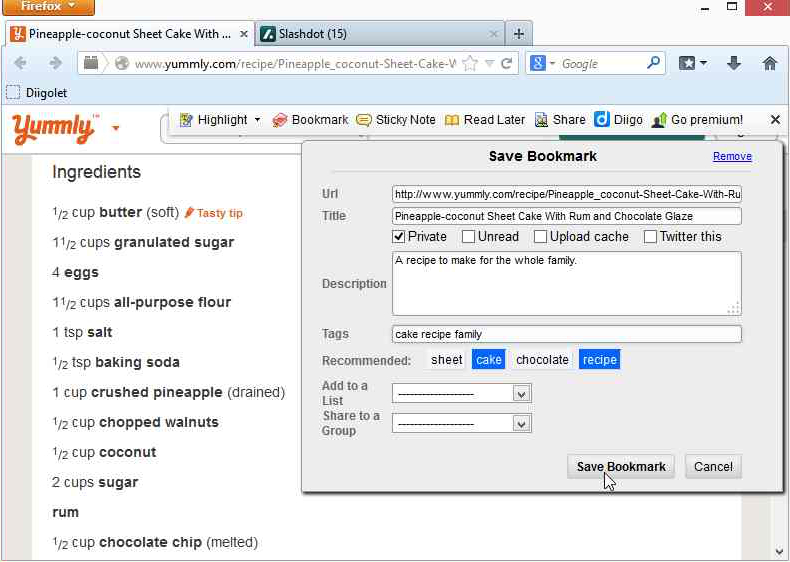
 Use the “ Save” option to bookmark a page. Bookmarking saves a link to the page in your online Diigo library, allowing you to easily access it later.
|
-
Highlighting can also be accomplished from the
context pop-up. After the Chrome extension is installed, whenever you select text on a webpage, the
context pop-up will appear, allowing you to accomplish text-related annotation.
Highlight Pop-up Menu – After you highlight some text, position your mouse cursor over it and the
highlight pop-up menu will appear.

The highlight pop-up menu allows you to add notes to, share, or delete the highlight.
-
 Sticky Note Sticky Note
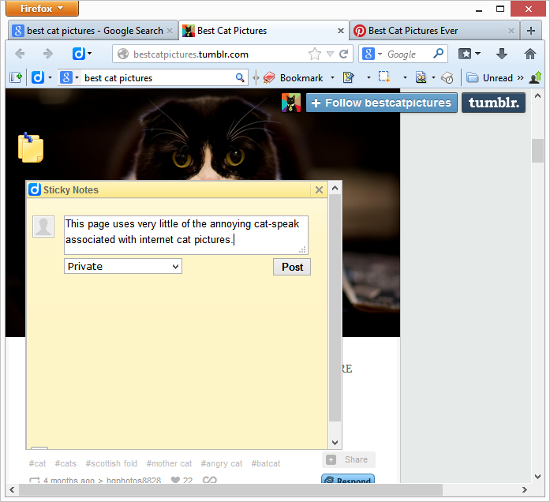
Click the middle icon on the annotation toolbar to add a sticky note to the page. With a sticky note, you can write your thoughts anywhere on a web page.
|
-
-
Feature Highlight: Highlights
Diigo saves the day with "highlights". Highlights let you select the important snippets on a page and store them in your library with the page's bookmark. Let's try it. Just open a page, maybe one of your old-school bookmarks or one of your new cat bookmarks, and find the information on that page you actually care about. Select that important text. Got it? Okay, now put your hemet on, 'cause this might blow your mind! Click the highlight icon on the Diigo toolbar. It's the one with the "T" on a page with a yellow highlighter. You will notice that the selected text gets a yellow background. This means that the text has been saved in your library, and as long as you have the Diigo add-on the text will be highlighted on the page! How's that for easy?

Now you've highlighted the text. It will appear in your library within the bookmark for the page it is on. Go to your library and you can see how it works. If you're not sure how to get to your library, just click the second icon on the toolbar (Diigo icon to the left of the search bar) and then select "My Library »".
-
Sticky Notes on the Web
What? I can put a sticky note on a web page? How? Oh, that's right! Diigo. Just right-click anywhere on the page and choose to "add a floating sticky note". Type up your note and choose "Post", then move the note anywhere on the page. You have to type a note first, before you move it where you want, otherwise there's nothing to move!
-
-
Tags help you find and organize your bookmarks by letting you select all of your bookmarks with a certain tag or combination of tags. Quickly add relevant tags to a bookmark by clicking on any of the recommended tags that appear under the description field on the “Save Bookmark” pop-up.
When you are satisfied with the information in the “Save Bookmark” pop-up, click the “Save Bookmark” button.
Now a link to the page is stored in your Diigo library, and the information you entered is stored with it.
-
Highlight
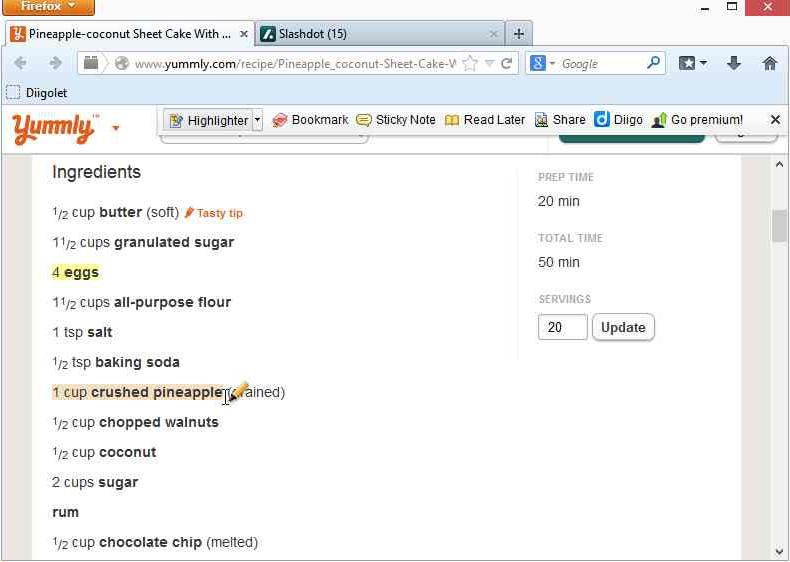
Highlighting lets you denote important information on a page, just like highlighting in a book, but with Diigo, the highlighted text will be conveniently saved to your library as well.
There are some important things for me to denote on my recipe. My wife doesn’t like pineapple, my grandfather can’t have eggs or chocolate, and I don’t like coconut very much, so I highlight those items on the recipe to let me know I need to deal with them.
Highlight by clicking “Highlight” on the Diigolet. Then select the text you want to highlight. The text will be visually highlighted and the text is now stored in your library. It’s that easy. Click the button again to exit highlighter mode.
You can also change the color of a highlight by clicking the downward-pointing arrow next to “Highlight” and choosing a color. Colors are useful for differentiating different types of highlights. I will use a different color for each of the different people I need to consider.
-
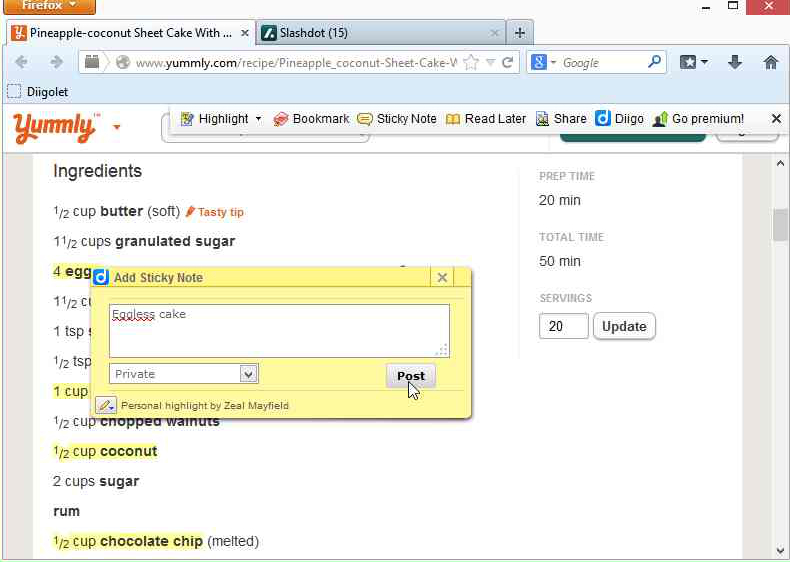
To add a sticky note to a highlight, simply move your mouse cursor over a highlight. When the little pop-up tab with the pencil on it appears, move the cursor to it and a menu will appear. Choose “Add Sticky Notes”. Now you can type and post a sticky note just like before, but this time it will be tied to the highlighted text.
Posted from
Diigo. The rest of my favorite links are
here.

.gif)



No comments:
Post a Comment